> ## Documentation Index
> Fetch the complete documentation index at: https://docs.mefriend.ai/llms.txt
> Use this file to discover all available pages before exploring further.
# Importing Your Data from Xoul.ai — One Click
> Move all your chats, personas, and xouls to Mefriend in just a few clicks.

Xoul.ai closed its doors yesterday. We pulled an all‑nighter (fueled by way too much coffee ☕) to ship a **one-click upload** so you don’t lose a single memory.
Follow the steps below and you’ll be role‑playing again in minutes.
***
## Before You Start
This guide assumes you’ve downloaded the Xoul export zip. If you haven’t, try logging in at **xoul.ai** to request an export. If the site is offline, email their support.
### What you can import today
* **One‑on‑one chats** (`chats_single`) – **every message** lands straight in your chat list, ready to continue
* **Personas you created** (`personas`) – your persona appear in *Edit Personas* page inside *My* menu so you can chat or tweak them instantly
* **Xouls you created** (`xouls`) - your Xouls will not die.
* **Scenarios you've created** (`scenarios`) – every scenario you created comes over intact and ready to run.
* **Lorebooks you created** (`assets`) - your lorebooks import automatically and are ready to use.
***
## 1) Unzip Your Xoul Export
From xoul after unzipping, you should see these folders:
| Folder | Meaning |
| -------------- | -------------------------- |
| `chats_single` | Your private conversations |
| `personas` | Characters you built |
| `xouls` | Xouls you published |
| `scenarios` | Scenarios you published |
| `assets` | Lorebooks you've created |
No worries if you're missing a folder. That just means you never used that feature.
***
## 2) Sign Up (or Log In) to Mefriend
1. Create an account or log in to [mefriend.ai](https://mefriend.ai)
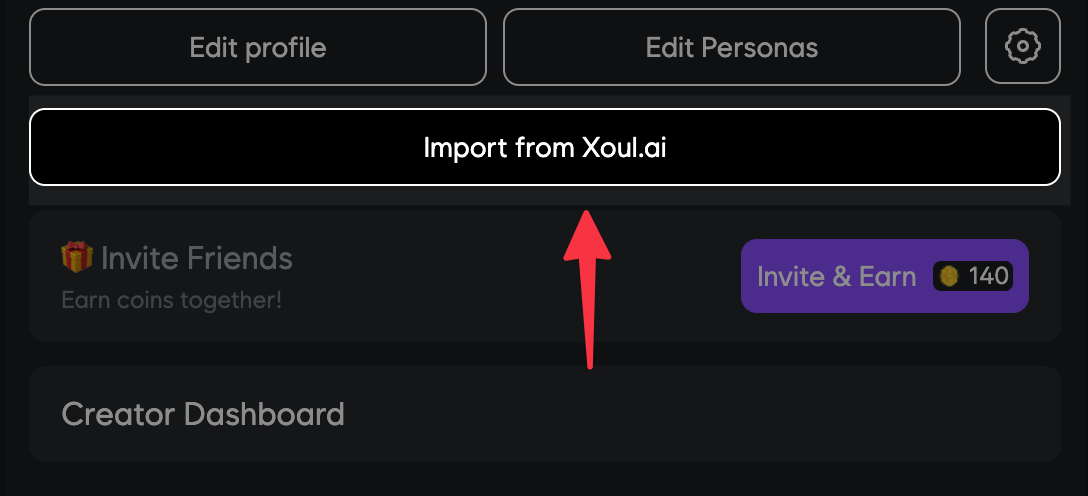
2. Head to **My → Import from Xoul.ai**.
 ***
## 3) Drag & Drop Your Files
***
## 3) Drag & Drop Your Files
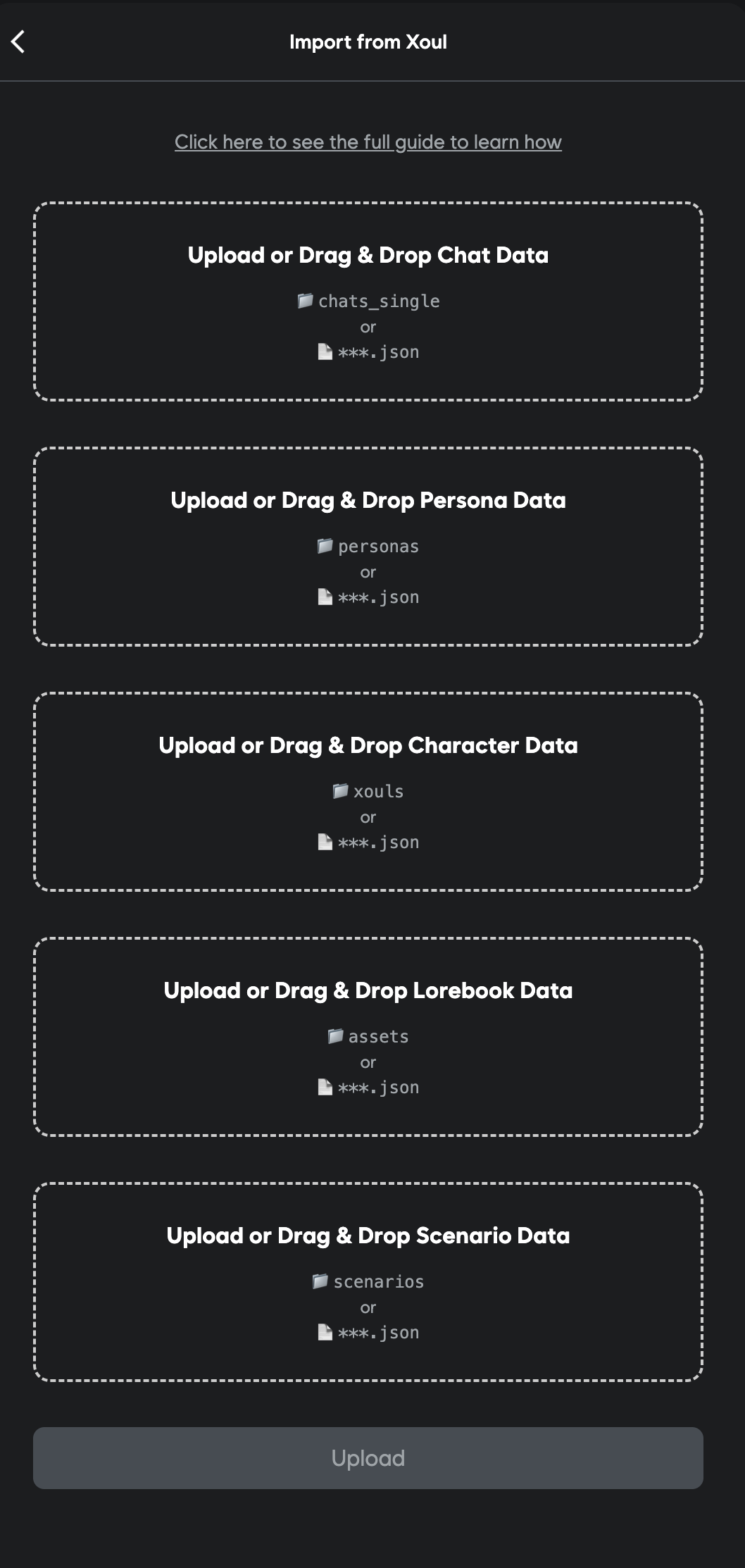 1. **Chats** → drop the entire **`chats_single`** folder.
2. **Personas** → drop the **`personas`** folder.
3. **Xouls** → drop the **`xouls`** folder.
4. **Scenarios** → drop the **`scenarios`** folder.
5. **Lorebooks** → drop the **`assets`** folder.
Make sure you drop each folder into the correct box.
Click **Upload** when you’re ready. Processing usually finishes in under a minute.
***
## 4) Verify Your Import
* **Chats** → open your **Chats** page. Your old conversations should pick up exactly where you left off.
There's better models than Xoul like 685B-Muse. It'll provide longer, richer, non-repetitive replies. (My daily driver.)
* **Personas / Xouls** → visit **My Characters**. Imported items visibility default to the settings of Xoul, so no worries!
* **Scenarios, Lorebooks** → visit **My**. Your scenarios and lorebooks will be there.
***
## Need Help?
Something off? DM me on discord [here](discord.com/users/1011464168982978690)
**Welcome aboard, Xoul travelers.**\
More is on the way. Happy role‑playing!
1. **Chats** → drop the entire **`chats_single`** folder.
2. **Personas** → drop the **`personas`** folder.
3. **Xouls** → drop the **`xouls`** folder.
4. **Scenarios** → drop the **`scenarios`** folder.
5. **Lorebooks** → drop the **`assets`** folder.
Make sure you drop each folder into the correct box.
Click **Upload** when you’re ready. Processing usually finishes in under a minute.
***
## 4) Verify Your Import
* **Chats** → open your **Chats** page. Your old conversations should pick up exactly where you left off.
There's better models than Xoul like 685B-Muse. It'll provide longer, richer, non-repetitive replies. (My daily driver.)
* **Personas / Xouls** → visit **My Characters**. Imported items visibility default to the settings of Xoul, so no worries!
* **Scenarios, Lorebooks** → visit **My**. Your scenarios and lorebooks will be there.
***
## Need Help?
Something off? DM me on discord [here](discord.com/users/1011464168982978690)
**Welcome aboard, Xoul travelers.**\
More is on the way. Happy role‑playing!